Can AI Redesign a Room and Keep Your Existing Furniture?
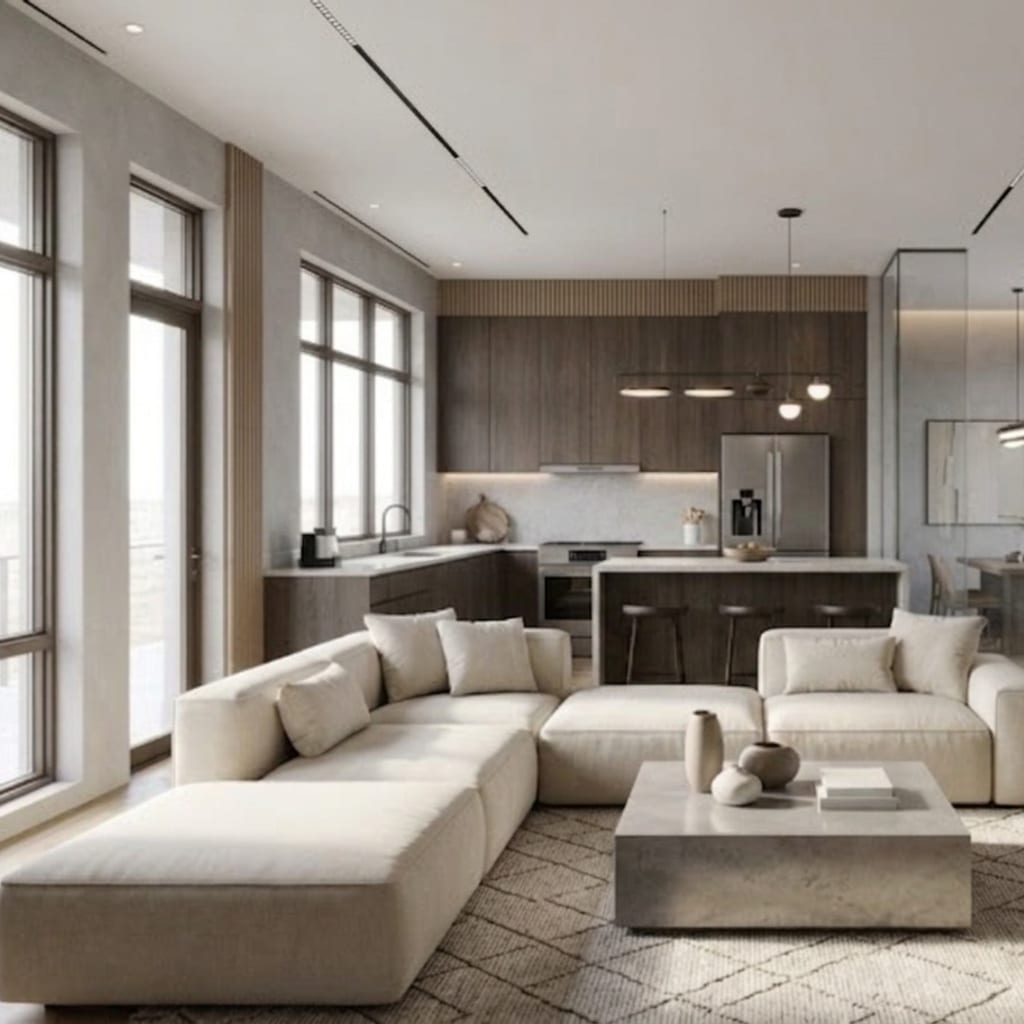
Yes — AI can redesign a room and keep your existing furniture, but only if you use the right kind of edit. The trick is knowing that “redesign” isn’t one action but three: transform (restyle everything), preserve (keep your furniture, change the finishes), and rearrange (same furniture, new layout). Most apps run a full transform by default, which is exactly why people complain that the AI replaced the sofa they specifically wanted to keep. Pick a preserve or rearrange edit instead, and your pieces stay put.
This is one of the most common wishes in AI design reviews — people want to remodel around what they already own, and are let down when the tool swaps it all out. Here’s how to actually do it.
The three design intents, explained
Every AI room edit falls into one of three intents. Design intent is what the AI is allowed to change versus what it must keep — the single most important choice you make before generating. Get this right and the results stop fighting you.
Transform means the AI restyles the entire room — new furniture, finishes, decor and mood — while keeping the architecture. This is the classic “make my room Scandinavian” move. Your walls and windows stay; almost everything else is reimagined.
Preserve means the AI keeps your existing furniture and objects in place and changes only the finishes — wall color, flooring, lighting. Your sofa stays your sofa; the walls go from beige to deep green.
Rearrange means the AI keeps your actual furniture but shows it in a new layout — the same pieces, moved. The bed shifts to the opposite wall; the sofa turns to face the window.
| Intent | Keeps furniture? | Changes | Best for |
|---|---|---|---|
| Transform | No — restyles it | Furniture, finishes, decor | A full from-scratch reimagining |
| Preserve | Yes | Wall color, flooring, lighting | Testing paint/floors around what you own |
| Rearrange | Yes | Furniture layout only | Fixing an awkward furniture plan |
Why do most AI apps replace all my furniture?
Because a full-style transform is the default — and often the only — mode they offer. When you tap “Modern” or “Japandi,” the tool restyles the whole scene at once, and your furniture is just another thing it restyles. That’s genuinely useful when you’re starting fresh or furnishing an empty space, but it’s the wrong tool when you love your existing pieces and only want new paint or a better arrangement.
This is the mismatch behind a recurring review complaint: people expected to remodel using their own furniture and found the app could only replace it. The furniture wasn’t the problem; the intent was. There was no preserve or rearrange option, so every result was a transform whether they wanted one or not.
How AI keeps your furniture but changes the walls and floor
Preserve-intent edits are where AI gets genuinely practical for people who aren’t starting over. Instead of one big restyle, you make one targeted change and leave everything else untouched. In Architectural AI, these map directly to one-tap quick edits:
- Change wall color — test a paint color on your real walls with your furniture still in the room.
- Change flooring — swap to hardwood, tile or a different carpet without moving a thing.
- Light the room / night mode — see how your existing space feels under different lighting.
- Add plants / add curtains — layer in finishing touches around what you already own.
- Declutter — clear the surfaces while keeping the furniture you’re keeping.
Because each edit changes only one variable, you can answer a real question — does sage green work with my brown couch? — instead of gambling the whole room on a single generation. Our home makeover modes guide walks through each of these one-tap edits in more detail.
Can AI rearrange furniture I already own?
Yes — this is the rearrange intent, and it’s the most underrated of the three. A redesign layout edit keeps your actual furniture but proposes a new arrangement: the sofa pulled off the wall, the bed reoriented, the desk moved to catch the window light. It’s the answer to “this room feels wrong but I can’t picture a better plan,” without buying anything or hauling heavy pieces across the floor to test a hunch.
Rearranging on-screen first is far cheaper than doing it for real and discovering the walkway is now blocked. If you’re wrestling with a genuinely awkward space, pair this with our guide on how to change a room layout for the design principles behind a good arrangement.
How do I prompt AI to keep my existing furniture?
Two reliable approaches, depending on the tool:
- Pick the mode, not the makeover. If your app has quick edits, choose a preserve edit (change wall color, change flooring) or a rearrange edit (redesign layout) instead of a full-style transform. The mode enforces the intent for you.
- Say it plainly in a custom prompt. If you’re writing your own instruction, be explicit: “Keep all existing furniture in place; change only the wall color to deep green and the floor to light oak.” Naming what to keep is as important as naming what to change.
And the honest limit: no tool preserves your furniture perfectly. A preserve edit may subtly restyle the texture of a couch or shift a chair a few inches, and a rearrange edit is a suggestion, not a measured floor plan — it won’t guarantee that the sectional physically fits against that wall. Treat the result as a fast, realistic preview to react to, not a construction document. For where AI previews are reliable and where you still need a tape measure, see how accurate AI interior design really is.
The bottom line
AI absolutely can redesign your room without throwing out your furniture — you just have to stop asking it for a full makeover when what you want is a targeted edit. Choose preserve to keep your pieces and change the finishes, choose rearrange to keep your pieces and change the layout, and save transform for when you genuinely want to start over. Once you’re picking the intent on purpose, the “it replaced my sofa” frustration disappears.
Want to keep your couch and just test a new wall color and floor? Download AI Room Redesign on the App Store, snap a photo, and run one quick edit at a time — your furniture stays, only what you choose changes.
Frequently Asked Questions
Can AI rearrange my furniture without replacing it?
Yes, with a tool that supports a rearrange or redesign-layout mode. It keeps your actual pieces and shows them in a new arrangement — a different sofa placement, a moved bed — rather than swapping in new furniture. Not every app offers this; most default to replacing everything.
Can AI keep my furniture but change the walls and floor?
Yes. That’s a preserve-intent edit: the AI holds your furniture in place and changes only finishes like wall color, flooring or lighting. One-tap modes such as change wall color and change flooring are built exactly for this.
Why do most AI design apps replace all my furniture?
Because they run a full-style transform by default, restyling the entire room at once. That’s great for a from-scratch reimagining but frustrating when you love your sofa and only want new paint. The fix is to pick a preserve or rearrange mode instead of a full restyle.
How do I prompt AI to keep my existing furniture?
Choose a targeted edit rather than a whole-room restyle: use a change-wall-color, change-flooring or redesign-layout mode, or state plainly in a custom prompt to keep existing furniture and change only the walls, floor or lighting. Making one change at a time keeps your pieces intact.
Keep reading